> ## Documentation Index
> Fetch the complete documentation index at: https://mage-staging.mintlify.site/llms.txt
> Use this file to discover all available pages before exploring further.
# Pipeline Management
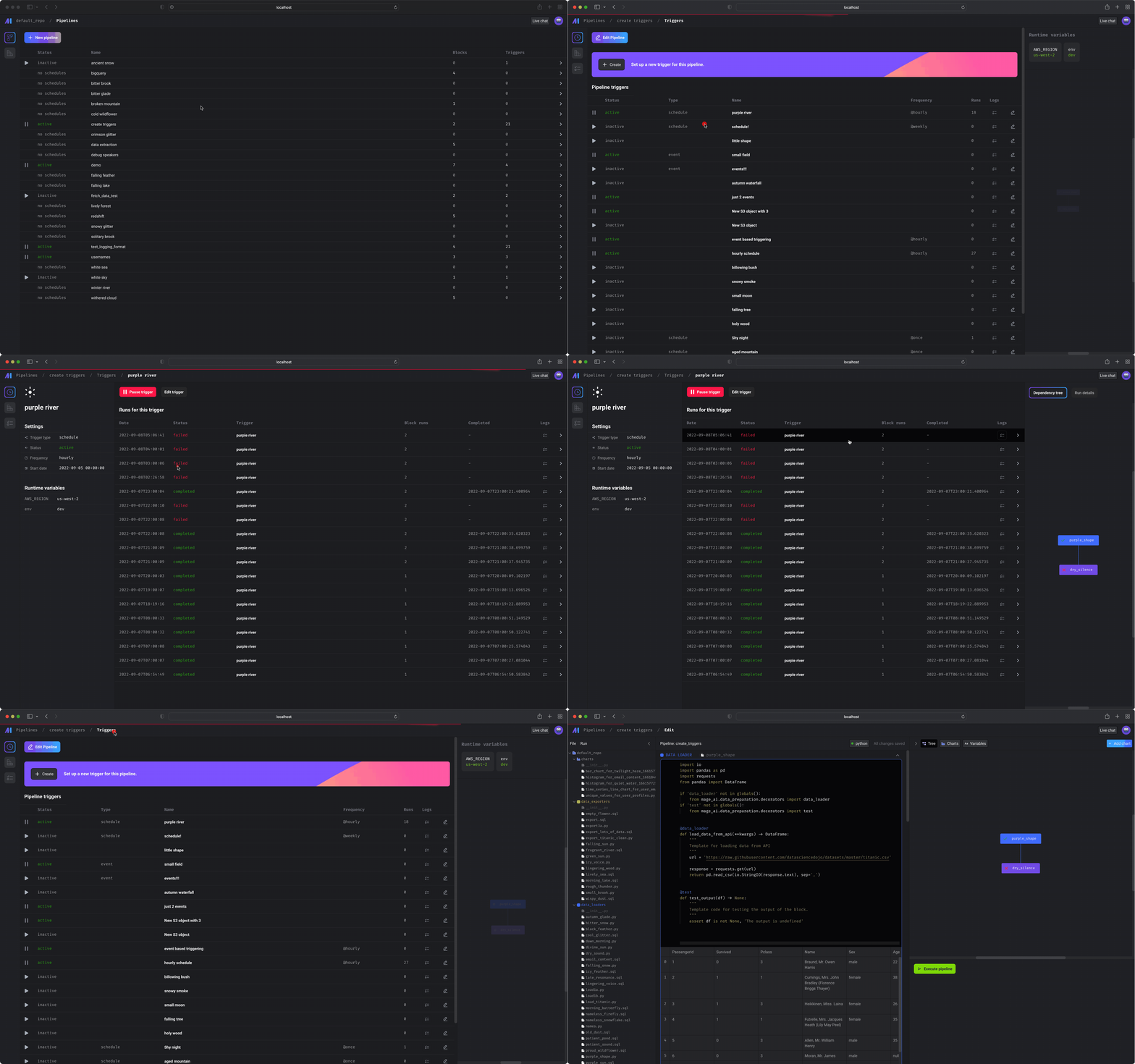 ## Setup
If you haven’t setup a project before, check out the
[setup guide](/getting-started/setup) before starting.
***
## Pipelines
`http://localhost:3000/pipelines`
This page will show all the pipelines in your project.
> Core abstraction: [Pipeline](/design/core-abstractions#pipeline)
>
> A pipeline contains references to all the blocks of code you want to run,
> charts for visualizing data, and organizes the dependency between each block
> of code.
## Setup
If you haven’t setup a project before, check out the
[setup guide](/getting-started/setup) before starting.
***
## Pipelines
`http://localhost:3000/pipelines`
This page will show all the pipelines in your project.
> Core abstraction: [Pipeline](/design/core-abstractions#pipeline)
>
> A pipeline contains references to all the blocks of code you want to run,
> charts for visualizing data, and organizes the dependency between each block
> of code.
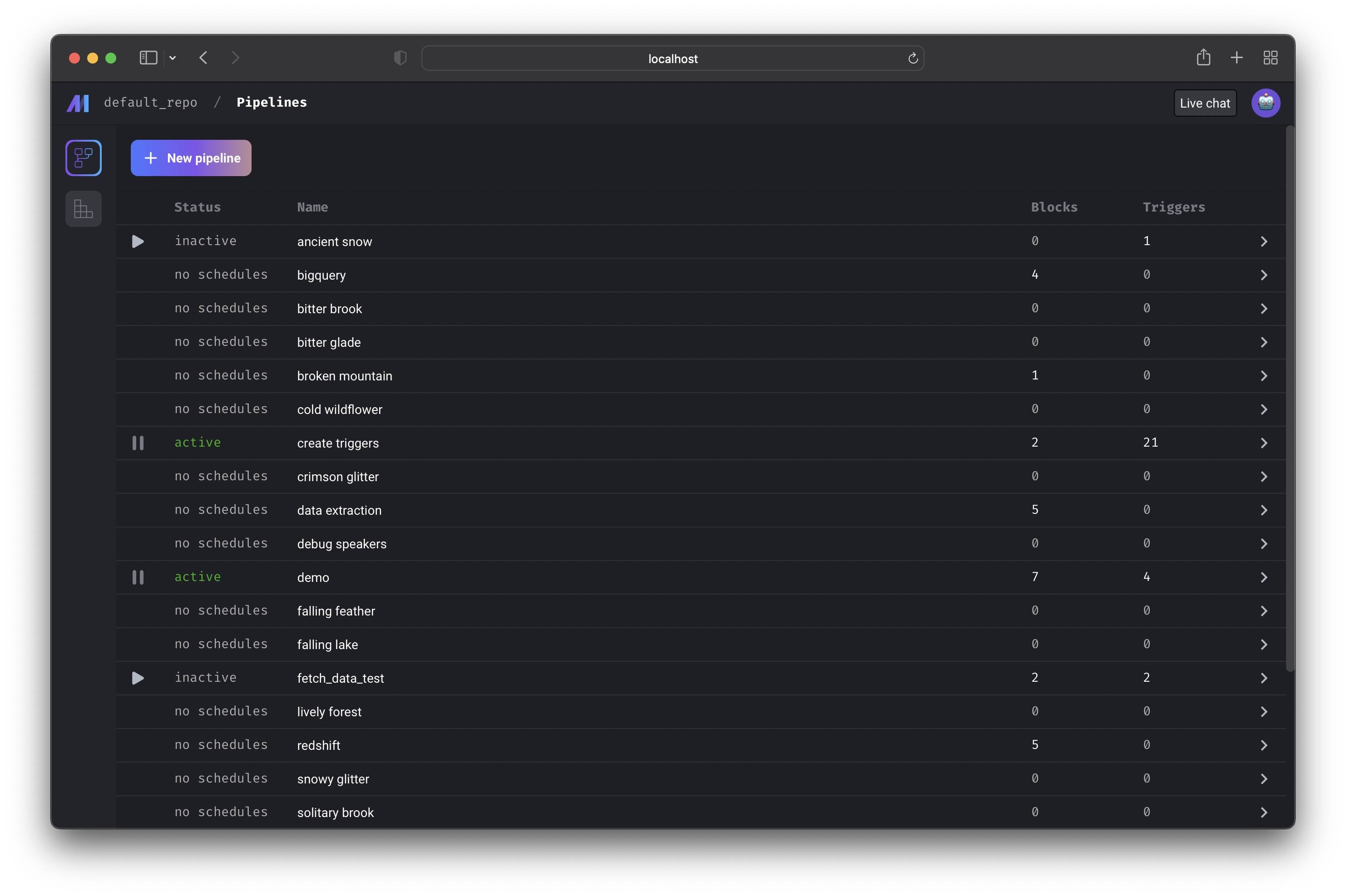 Learn more about
[**projects and pipelines here**](/design/core-abstractions#project).
From this page, you can also create a new pipeline by clicking the
**`[+ New pipeline]`** button.
#### Creating new pipeline
Creating a new pipeline will take you to the **Pipeline edit page**; a
notebook-like experience for adding blocks, creating dependencies between
blocks, testing code, and visualizing data with charts.
Learn more about the [Notebook for building data
pipelines](/about/features#notebook-for-building-data-pipelines)
***
## Pipeline runs
[`http://localhost:3000/pipeline-runs`](http://localhost:3000/pipeline-runs)
View all the runs for every pipeline in your current project.
> Core abstraction: [Run](/design/core-abstractions#run)
>
> A run record stores information about when it was started, its status, when it
> was completed, any runtime variables used in the execution of the pipeline or
> block, etc.
Learn more about
[**projects and pipelines here**](/design/core-abstractions#project).
From this page, you can also create a new pipeline by clicking the
**`[+ New pipeline]`** button.
#### Creating new pipeline
Creating a new pipeline will take you to the **Pipeline edit page**; a
notebook-like experience for adding blocks, creating dependencies between
blocks, testing code, and visualizing data with charts.
Learn more about the [Notebook for building data
pipelines](/about/features#notebook-for-building-data-pipelines)
***
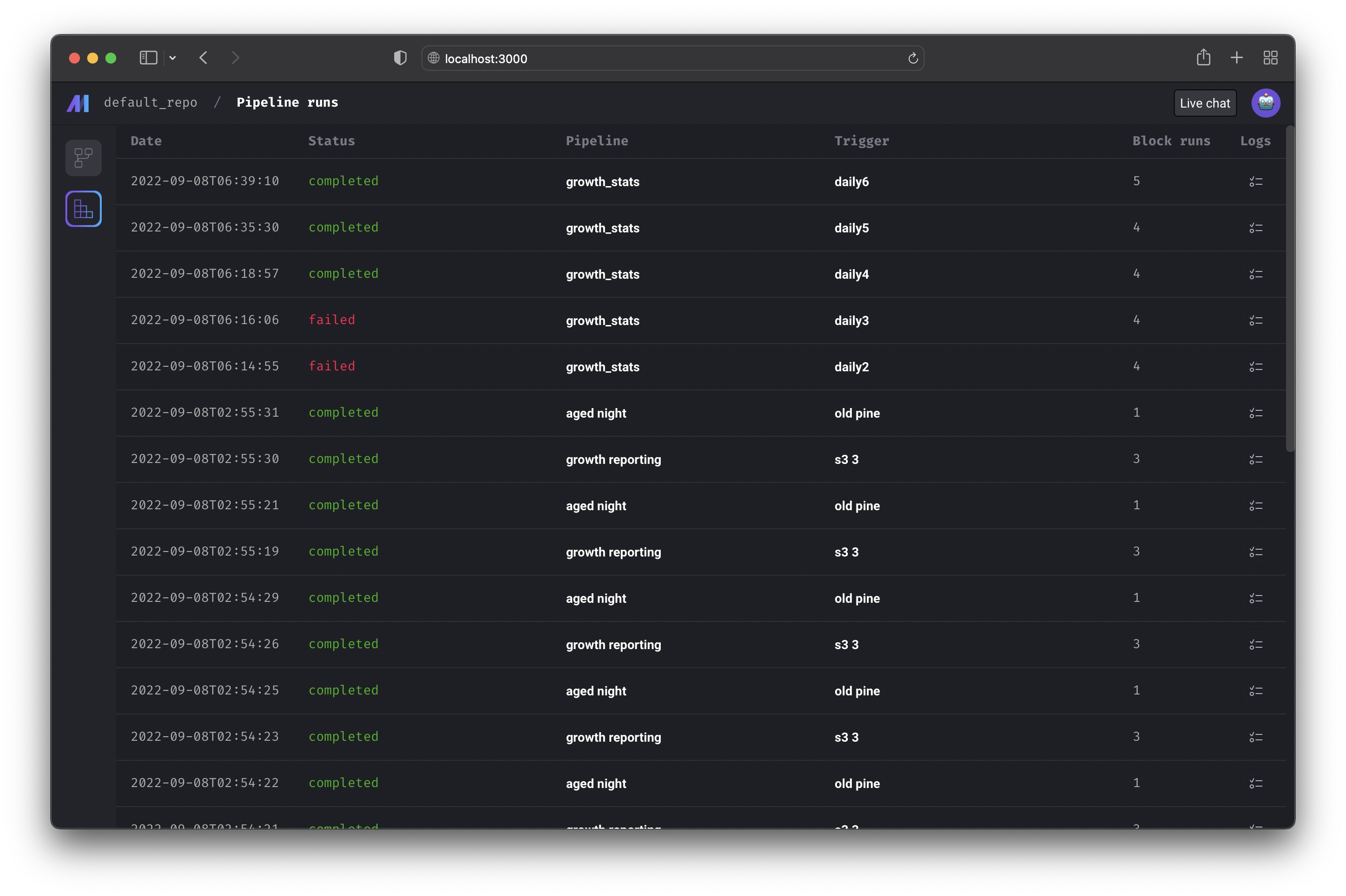
## Pipeline runs
[`http://localhost:3000/pipeline-runs`](http://localhost:3000/pipeline-runs)
View all the runs for every pipeline in your current project.
> Core abstraction: [Run](/design/core-abstractions#run)
>
> A run record stores information about when it was started, its status, when it
> was completed, any runtime variables used in the execution of the pipeline or
> block, etc.
 ***
## Pipeline detail
`http://localhost:3000/pipelines/[uuid]`
This page contains all the information and history for a single pipeline:
1. [Triggers](/design/core-abstractions#trigger)
2. [Runs](/design/core-abstractions#run)
3. [Logs](/design/core-abstractions#log)
***
## Triggers
[`http://localhost:3000/pipelines/example_pipeline/triggers`](http://localhost:3000/pipelines/example_pipeline/triggers)
This page shows all the active and inactive triggers for a single pipeline.
> Core abstraction: [Trigger](/design/core-abstractions#trigger)
>
> A trigger is a set of instructions that determine when or how a pipeline
> should run.
***
## Pipeline detail
`http://localhost:3000/pipelines/[uuid]`
This page contains all the information and history for a single pipeline:
1. [Triggers](/design/core-abstractions#trigger)
2. [Runs](/design/core-abstractions#run)
3. [Logs](/design/core-abstractions#log)
***
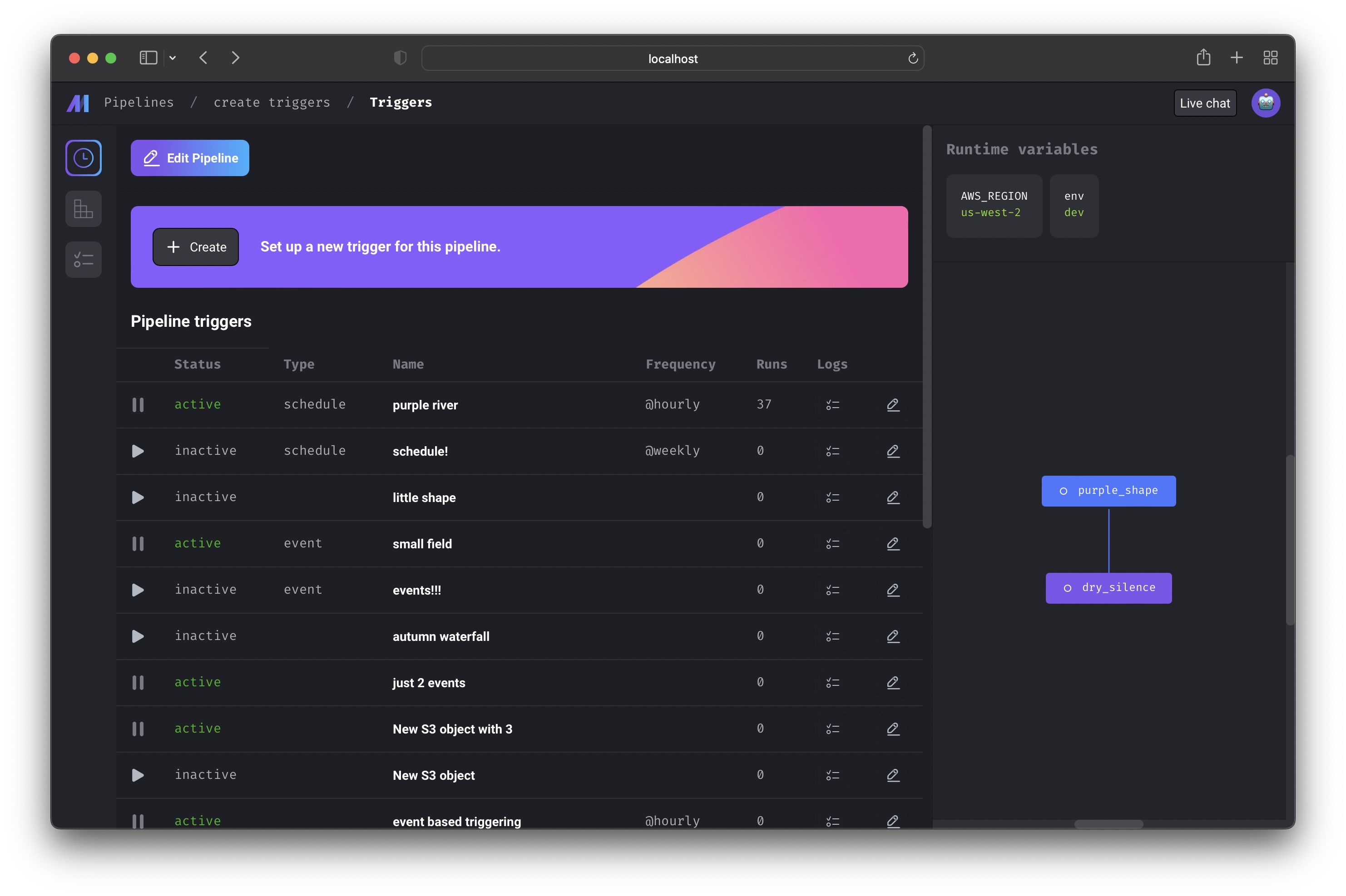
## Triggers
[`http://localhost:3000/pipelines/example_pipeline/triggers`](http://localhost:3000/pipelines/example_pipeline/triggers)
This page shows all the active and inactive triggers for a single pipeline.
> Core abstraction: [Trigger](/design/core-abstractions#trigger)
>
> A trigger is a set of instructions that determine when or how a pipeline
> should run.
 ***
#### Create trigger
`http://localhost:3000/pipelines/[uuid]/triggers/[id]/edit`
Create a new trigger for this pipeline by clicking the **`[+ Create]`** button
near the top of the page.
You can configure the trigger to run the pipeline on a schedule, when an event
occurs, or when an API is called.
> Core abstraction: [Schedule](/design/core-abstractions#schedule)
>
> A schedule type trigger will instruct the pipeline to run after a start date
> and on a set interval.
***
> Core abstraction: [Event](/design/core-abstractions#event)
>
> An event type trigger will instruct the pipeline to run whenever a specific
> event occurs.
***
> Core abstraction: [API](/design/core-abstractions#api)
>
> An API trigger will instruct the pipeline to run whenever a specific API
> is called.
***
#### Create trigger
`http://localhost:3000/pipelines/[uuid]/triggers/[id]/edit`
Create a new trigger for this pipeline by clicking the **`[+ Create]`** button
near the top of the page.
You can configure the trigger to run the pipeline on a schedule, when an event
occurs, or when an API is called.
> Core abstraction: [Schedule](/design/core-abstractions#schedule)
>
> A schedule type trigger will instruct the pipeline to run after a start date
> and on a set interval.
***
> Core abstraction: [Event](/design/core-abstractions#event)
>
> An event type trigger will instruct the pipeline to run whenever a specific
> event occurs.
***
> Core abstraction: [API](/design/core-abstractions#api)
>
> An API trigger will instruct the pipeline to run whenever a specific API
> is called.
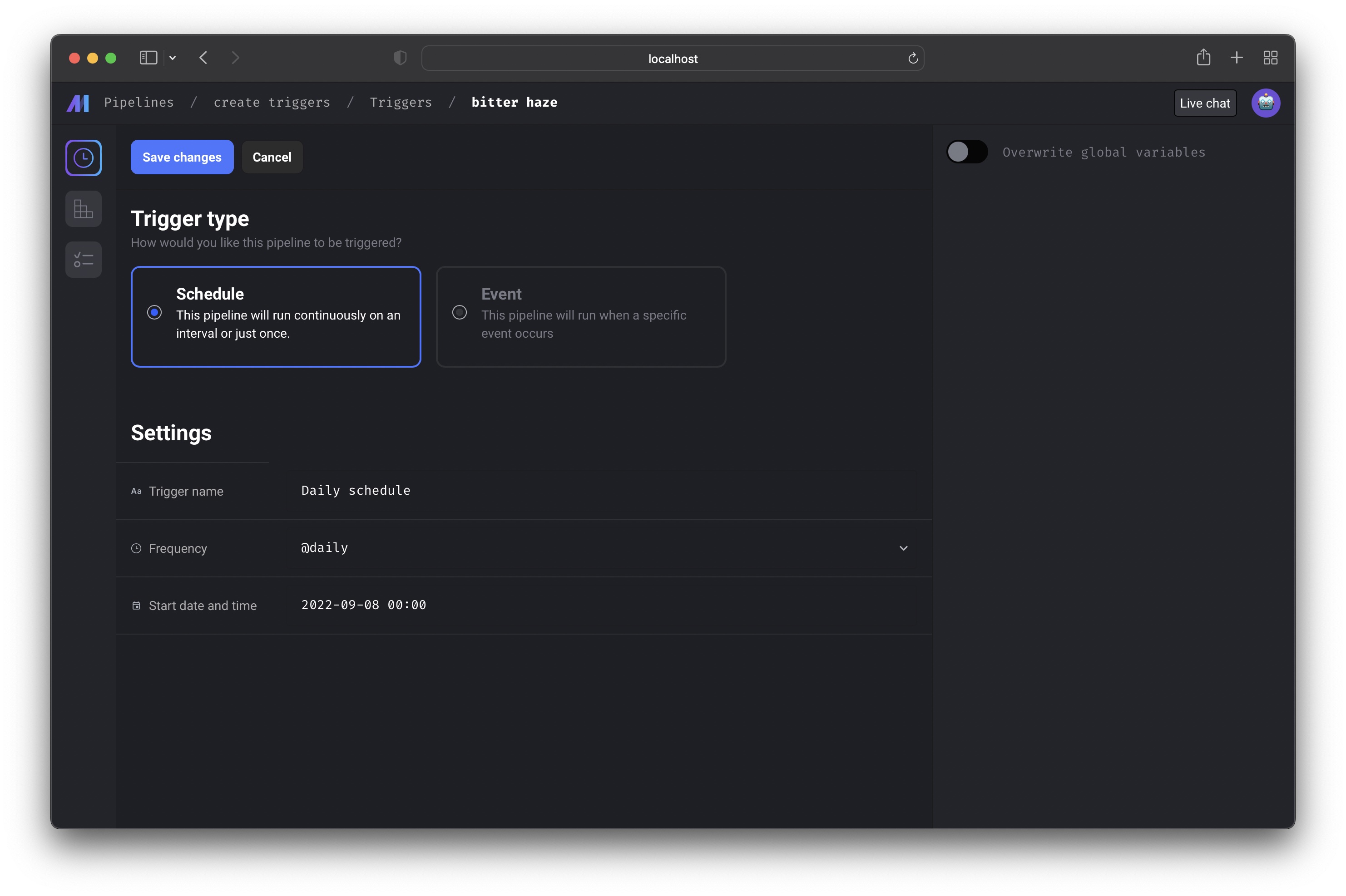 Example page for creating a schedule type trigger.
***
#### Trigger detail
On this page, you can start or pause the trigger. Starting the trigger will make
it active. Pausing the trigger will prevent it from running the pipeline.
If you have other triggers for this pipeline, pausing 1 trigger may not stop
the pipeline from running since other triggers can also run the pipeline.
***
Example page for creating a schedule type trigger.
***
#### Trigger detail
On this page, you can start or pause the trigger. Starting the trigger will make
it active. Pausing the trigger will prevent it from running the pipeline.
If you have other triggers for this pipeline, pausing 1 trigger may not stop
the pipeline from running since other triggers can also run the pipeline.
***
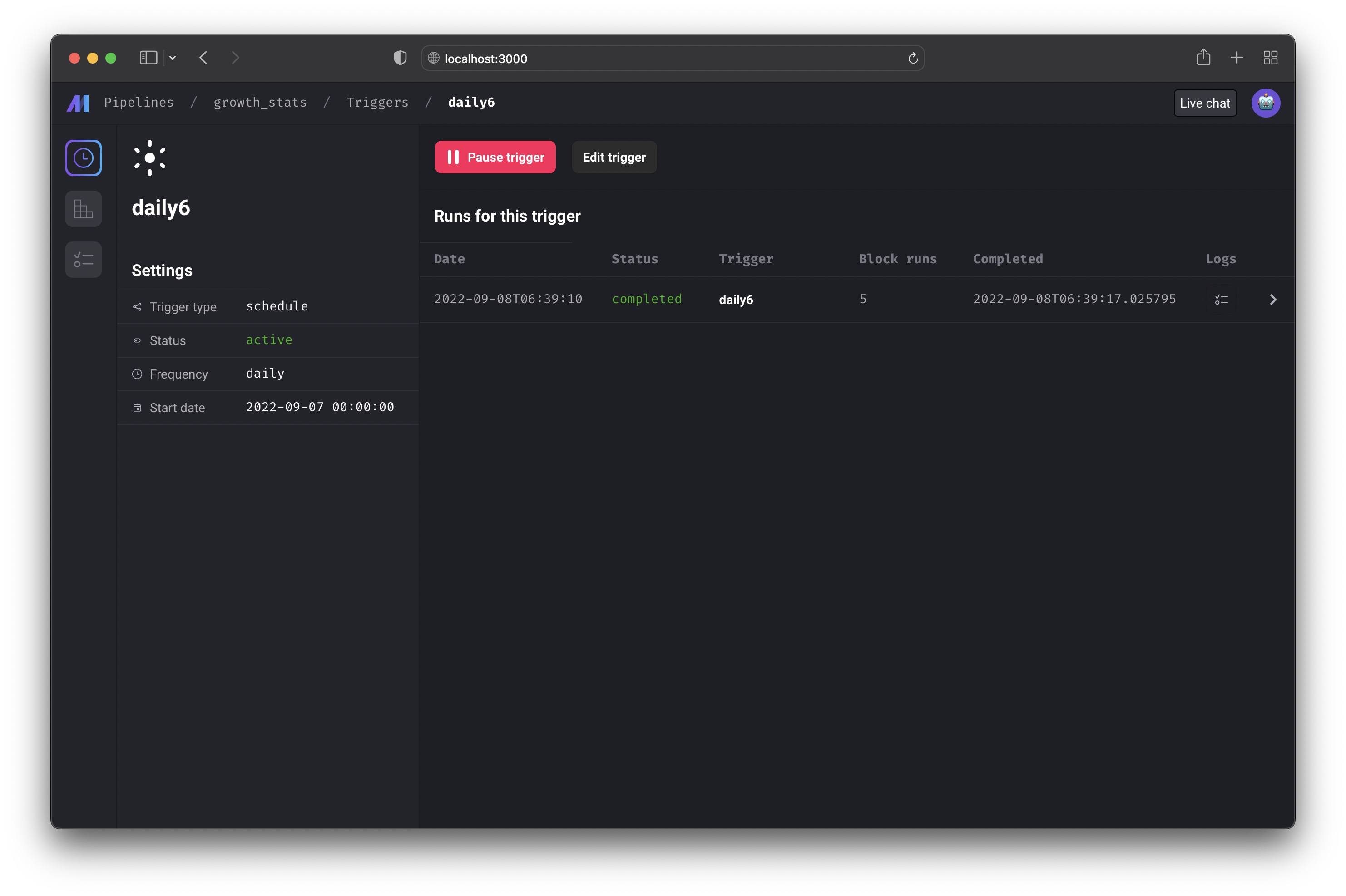 You can also edit the trigger after creating it by clicking the
**`[Edit trigger]`** button.
***
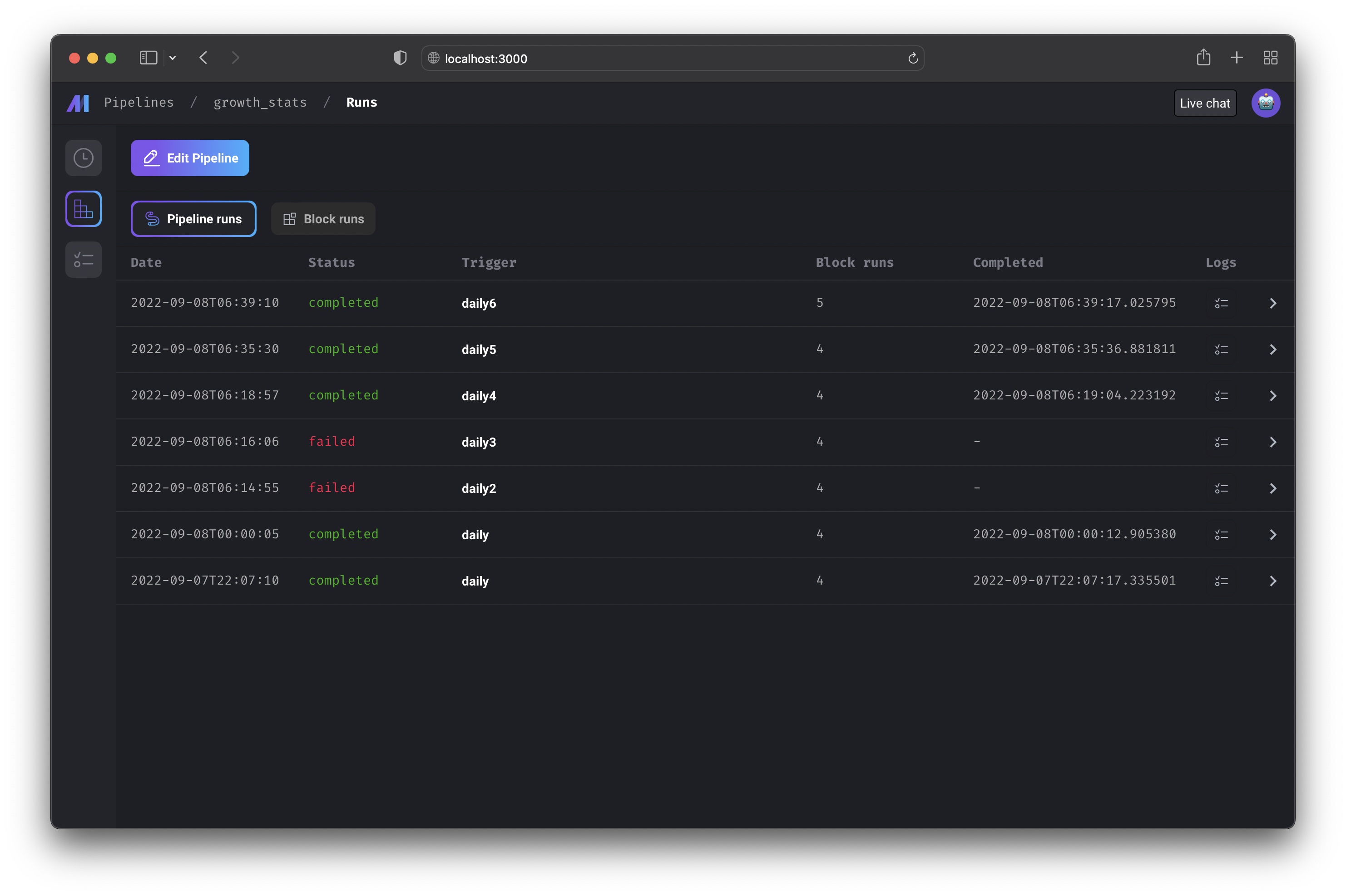
## Runs
[`http://localhost:3000/pipelines/example_pipeline/runs`](http://localhost:3000/pipelines/example_pipeline/runs)
View the pipeline runs and block runs for a pipeline.
> Core abstraction: [Run](/design/core-abstractions#run)
>
> A run record stores information about when it was started, its status, when it
> was completed, any runtime variables used in the execution of the pipeline or
> block, etc.
You can also edit the trigger after creating it by clicking the
**`[Edit trigger]`** button.
***
## Runs
[`http://localhost:3000/pipelines/example_pipeline/runs`](http://localhost:3000/pipelines/example_pipeline/runs)
View the pipeline runs and block runs for a pipeline.
> Core abstraction: [Run](/design/core-abstractions#run)
>
> A run record stores information about when it was started, its status, when it
> was completed, any runtime variables used in the execution of the pipeline or
> block, etc.
 #### Retry run
*WIP*
***
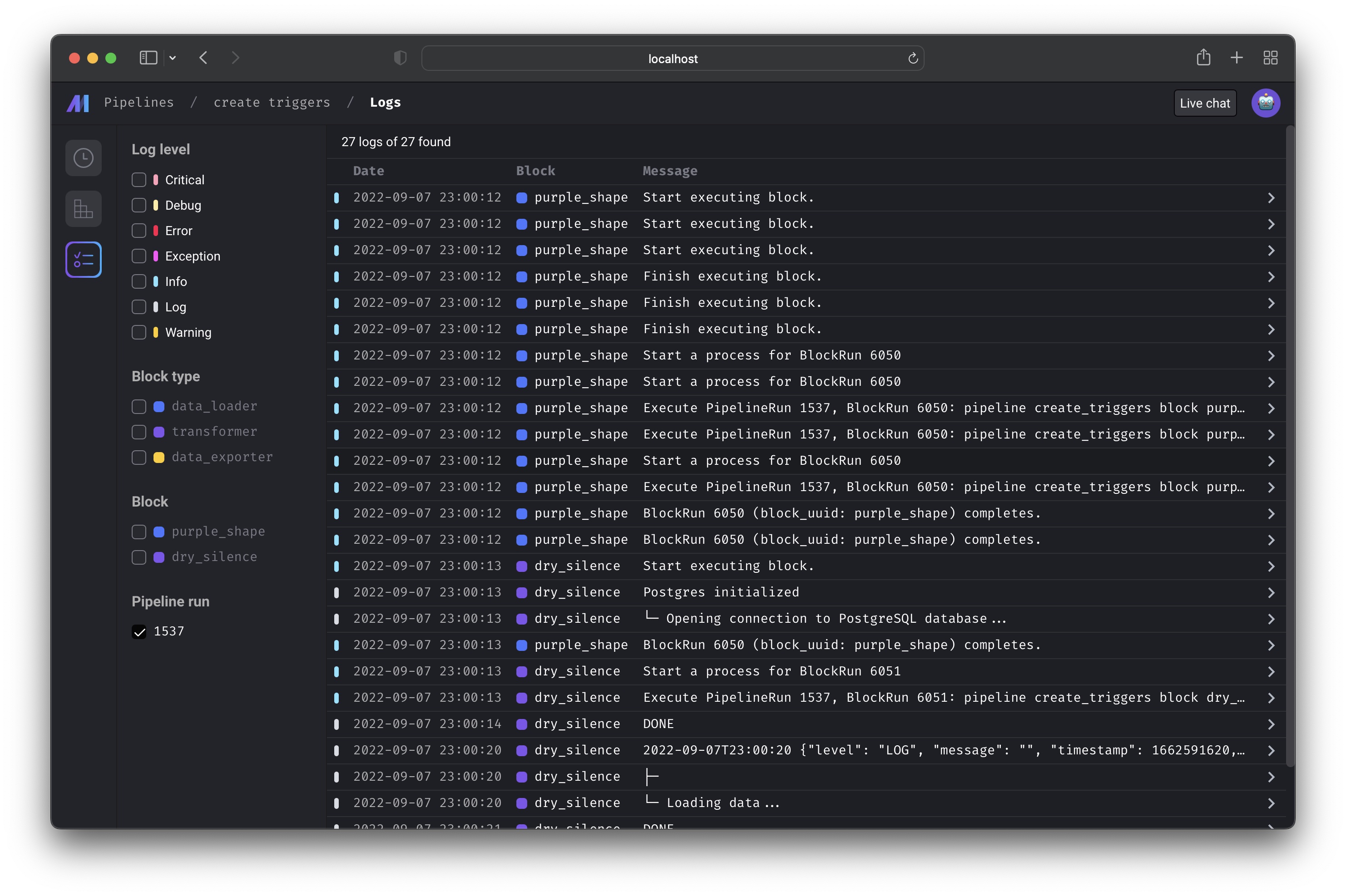
## Logs
[`http://localhost:3000/pipelines/example_pipeline/logs`](http://localhost:3000/pipelines/example_pipeline/logs)
Browse all logs for a pipeline. You can search and filter logs by log level,
block type, block UUID, and more.
> Core abstraction: [**Log**](/design/core-abstractions#log)
>
> A log is a file that contains system output information.
#### Retry run
*WIP*
***
## Logs
[`http://localhost:3000/pipelines/example_pipeline/logs`](http://localhost:3000/pipelines/example_pipeline/logs)
Browse all logs for a pipeline. You can search and filter logs by log level,
block type, block UUID, and more.
> Core abstraction: [**Log**](/design/core-abstractions#log)
>
> A log is a file that contains system output information.
 ***
## Backfill
*WIP*
***
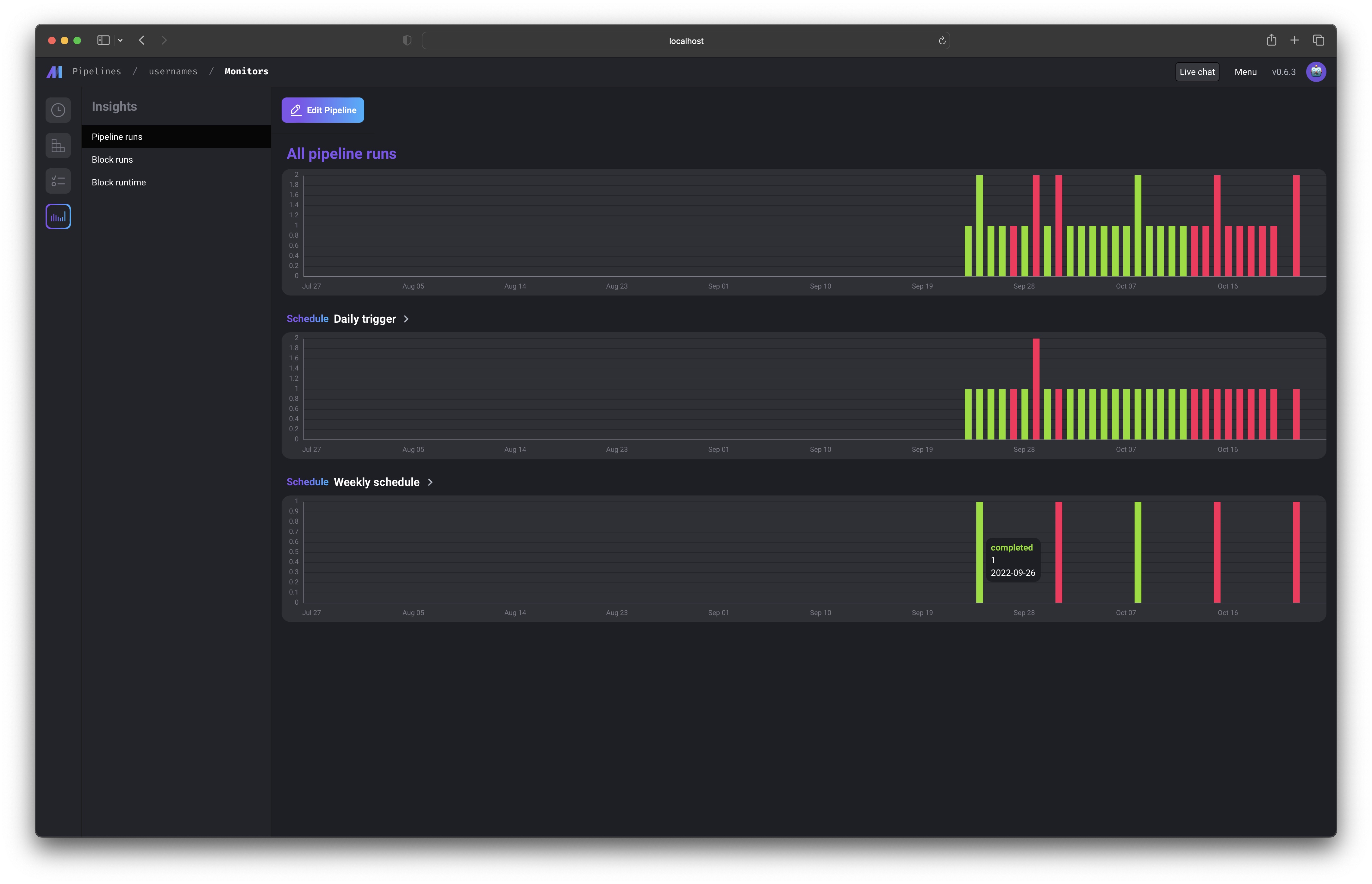
## Monitor
You can monitor many metrics for each of your pipelines and blocks. Soon, you’ll
be able to monitor aggregate metrics across all pipelines and blocks.
***
## Backfill
*WIP*
***
## Monitor
You can monitor many metrics for each of your pipelines and blocks. Soon, you’ll
be able to monitor aggregate metrics across all pipelines and blocks.
 Read more [here](/development/observability/monitoring).
## Concurrency
You can limit the concurrency of the block execution to reduce resource consumption.
### Global concurrency
You can configure the maximum number of concurrent block runs in project’s metadata.yaml via queue\_config.
```yaml theme={null}
queue_config:
concurrency: 100
```
The default value of concurrency is 20.
### Pipeline level concurrency
You can edit the `concurrency_config` in each pipeline's metadata.yaml file to enforce pipeline level concurrency.
Here is the example:
```yaml theme={null}
concurrency_config:
block_run_limit: 5
pipeline_run_limit: 3
```
* `block_run_limit` is to limit the concurrent blocks runs in one pipeline run.
* `pipeline_run_limit` is to limit the concurrent pipeline runs in one pipeline trigger.
## Variable storage
Mage automatically persists the output of block runs on disk. You can specify the path or the storage for block output variables
in the following ways.
* Specify the data directory path via `MAGE_DATA_DIR` environment variable. If you use Mage docker image, this environment
variable is set to `/home/src/mage_data` by default.
* If the `MAGE_DATA_DIR` environment variable is not set, you can set the `variables_dir` path in project's metadata.yaml. Here is
an example:
```yaml theme={null}
variables_dir: /home/src/mage_data
```
* You can also use an external storage to store the block output variables by specifying the `remote_variables_dir` path in project's
metadata.yaml.
* AWS S3 storage:
```yaml theme={null}
variables_dir: /home/src/mage_data
remote_variables_dir: s3://bucket/path_prefix
```
* Google Cloud Storage:
```yaml theme={null}
variables_dir: /home/src/mage_data
remote_variables_dir: gs://bucket/path_prefix
```
## Variable retention
If you want to clean up the old variables in your variable storage, you can set the `variables_retention_period`
config in project's metadata.yaml. The valid period should end with "d", "h", or "w".
Example config:
```yaml theme={null}
variables_retention_period: 30d
```
After configuring `variables_retention_period` in project's metadata.yaml, you can run the following command
to clean up old variables:
```bash theme={null}
mage clean-cached-variables [project_path]
```
Read more [here](/development/observability/monitoring).
## Concurrency
You can limit the concurrency of the block execution to reduce resource consumption.
### Global concurrency
You can configure the maximum number of concurrent block runs in project’s metadata.yaml via queue\_config.
```yaml theme={null}
queue_config:
concurrency: 100
```
The default value of concurrency is 20.
### Pipeline level concurrency
You can edit the `concurrency_config` in each pipeline's metadata.yaml file to enforce pipeline level concurrency.
Here is the example:
```yaml theme={null}
concurrency_config:
block_run_limit: 5
pipeline_run_limit: 3
```
* `block_run_limit` is to limit the concurrent blocks runs in one pipeline run.
* `pipeline_run_limit` is to limit the concurrent pipeline runs in one pipeline trigger.
## Variable storage
Mage automatically persists the output of block runs on disk. You can specify the path or the storage for block output variables
in the following ways.
* Specify the data directory path via `MAGE_DATA_DIR` environment variable. If you use Mage docker image, this environment
variable is set to `/home/src/mage_data` by default.
* If the `MAGE_DATA_DIR` environment variable is not set, you can set the `variables_dir` path in project's metadata.yaml. Here is
an example:
```yaml theme={null}
variables_dir: /home/src/mage_data
```
* You can also use an external storage to store the block output variables by specifying the `remote_variables_dir` path in project's
metadata.yaml.
* AWS S3 storage:
```yaml theme={null}
variables_dir: /home/src/mage_data
remote_variables_dir: s3://bucket/path_prefix
```
* Google Cloud Storage:
```yaml theme={null}
variables_dir: /home/src/mage_data
remote_variables_dir: gs://bucket/path_prefix
```
## Variable retention
If you want to clean up the old variables in your variable storage, you can set the `variables_retention_period`
config in project's metadata.yaml. The valid period should end with "d", "h", or "w".
Example config:
```yaml theme={null}
variables_retention_period: 30d
```
After configuring `variables_retention_period` in project's metadata.yaml, you can run the following command
to clean up old variables:
```bash theme={null}
mage clean-cached-variables [project_path]
```