> ## Documentation Index
> Fetch the complete documentation index at: https://mage-staging.mintlify.site/llms.txt
> Use this file to discover all available pages before exploring further.
# Using AI (artificial intelligence)
> Use AI to perform various actions in Mage.
 ## Setup
You need to add an OpenAI API key to your project before you can use AI for various actions.
Read [OpenAI’s documentation](https://help.openai.com/en/articles/4936850-where-do-i-find-my-secret-api-key)
to get your API key.
Once you have your OpenAI API key, go to project settings (click the "wizard" in the top right > Workspace > Preferences) and enter the OpenAI API key under the section labeled OpenAI.
## Generate pipeline using AI
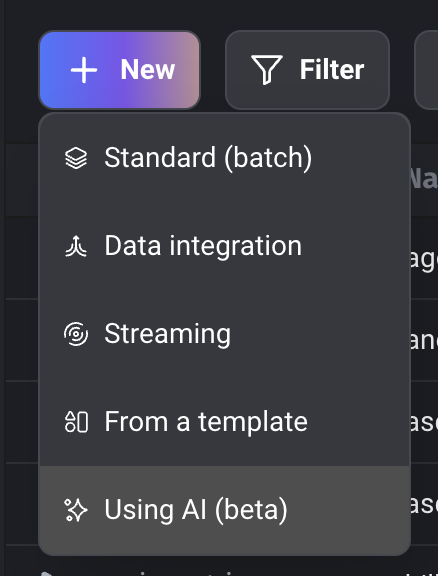
When creating a new pipeline, select the option labeled Using AI.
Then, type the description of what the pipeline should do.
For example:
*Load data from an API,
then clean the column names,
and finally export the dataframe to PostgreSQL.*
## Setup
You need to add an OpenAI API key to your project before you can use AI for various actions.
Read [OpenAI’s documentation](https://help.openai.com/en/articles/4936850-where-do-i-find-my-secret-api-key)
to get your API key.
Once you have your OpenAI API key, go to project settings (click the "wizard" in the top right > Workspace > Preferences) and enter the OpenAI API key under the section labeled OpenAI.
## Generate pipeline using AI
When creating a new pipeline, select the option labeled Using AI.
Then, type the description of what the pipeline should do.
For example:
*Load data from an API,
then clean the column names,
and finally export the dataframe to PostgreSQL.*
 ## Generate block using AI
You must turn on the feature named `add_new_block_v2`
in your project settings. (click the "wizard" in the top right > Workspace > Preferences)
When adding a new block, type in the description of what you want the block to do.
In the autocomplete dropdown list, select the 1st option with a label starting with
Generate block using AI: ...
## Generate block using AI
You must turn on the feature named `add_new_block_v2`
in your project settings. (click the "wizard" in the top right > Workspace > Preferences)
When adding a new block, type in the description of what you want the block to do.
In the autocomplete dropdown list, select the 1st option with a label starting with
Generate block using AI: ...
 ## Document code using AI
 ### Add documentation for a block
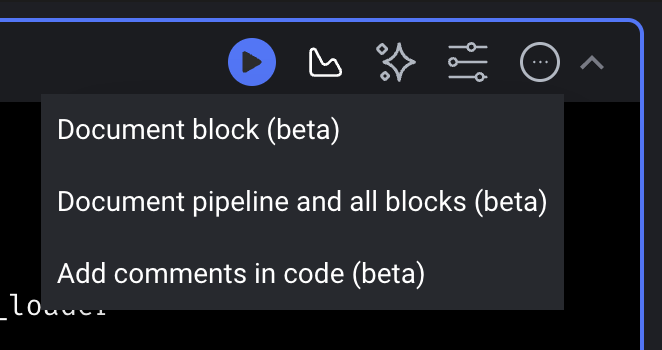
On the edit pipeline page in the top right corner of a block, click the AI actions icon.
Select the option labeled Document block.
### Add documentation for a pipeline and all its blocks
On the edit pipeline page in the top right corner of a block, click the AI actions icon.
Select the option labeled Document pipeline and all blocks.
### Add comments in a block
On the edit pipeline page in the top right corner of a block, click the AI actions icon.
Select the option labeled Add comments in code.
### Add documentation for a block
On the edit pipeline page in the top right corner of a block, click the AI actions icon.
Select the option labeled Document block.
### Add documentation for a pipeline and all its blocks
On the edit pipeline page in the top right corner of a block, click the AI actions icon.
Select the option labeled Document pipeline and all blocks.
### Add comments in a block
On the edit pipeline page in the top right corner of a block, click the AI actions icon.
Select the option labeled Add comments in code.