> ## Documentation Index
> Fetch the complete documentation index at: https://mage-staging.mintlify.site/llms.txt
> Use this file to discover all available pages before exploring further.
# Sign in with Microsoft
> Enable signing in with Microsoft account in Mage.
### Pre-requisites
First, you'll need to enable user authentication within Mage. You can find out more about
this in the [Overview page](/production/authentication/overview).
### Enable Microsoft sign in
By default, users will not see the "Sign in with Microsft" option in their sign in page. To
enable this, you will need to get your organization's Tenant ID. You can find this in the
Azure Portal:
1. Log into your Azure Portal
2. Click into the Azure Active Directory service
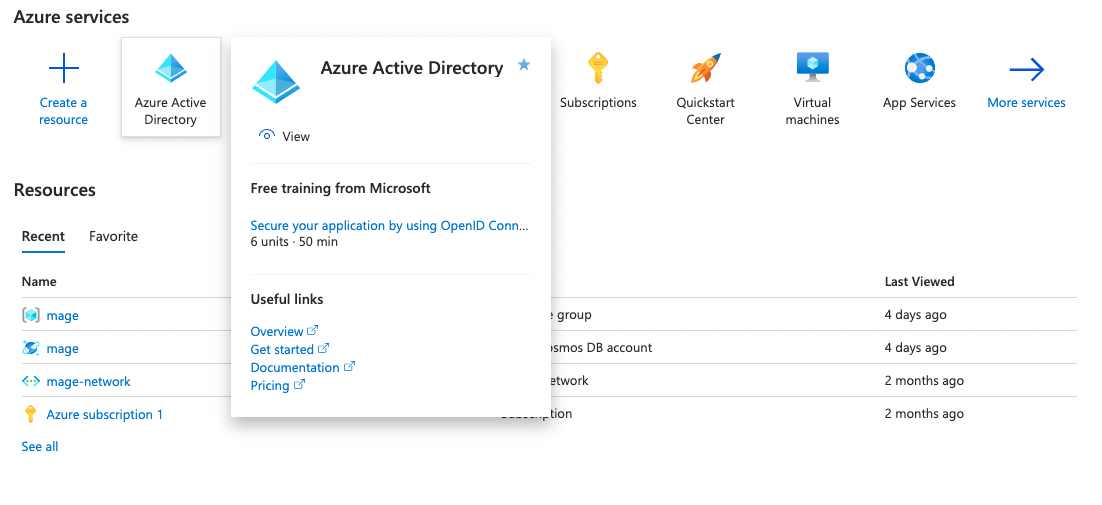 3. Navigate to the directory you want users to sign into
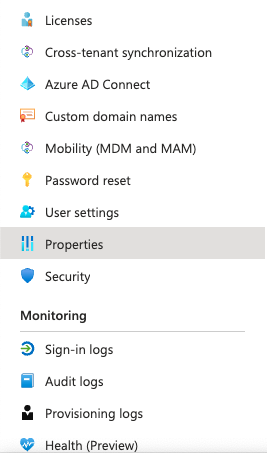
4. Click "Properties" in the left sidebar
3. Navigate to the directory you want users to sign into
4. Click "Properties" in the left sidebar
 5. Copy the value under "Tenant ID"
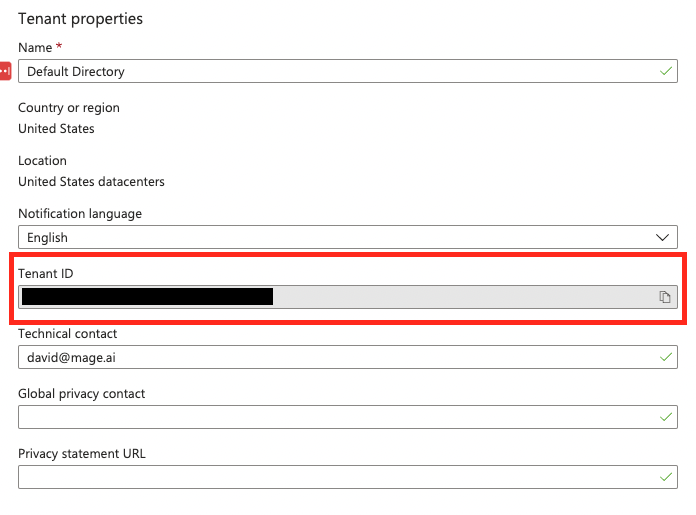 Once you have found your tenant ID, you will need to set the following environment variable
in your Mage setup.
| | |
| ----- | ------------------------------- |
| Name | `ACTIVE_DIRECTORY_DIRECTORY_ID` |
| Value | `` |
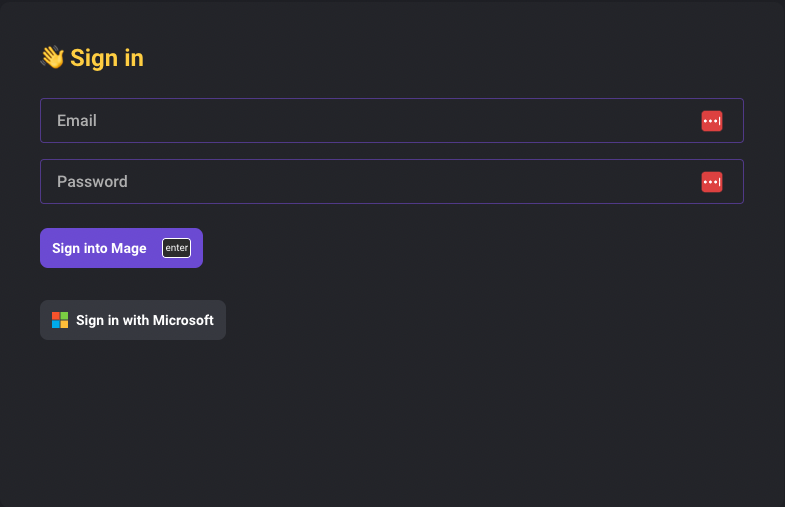
You should now see the "Sign in with Microsoft" button when you start Mage and attempt to sign in.
Once you have found your tenant ID, you will need to set the following environment variable
in your Mage setup.
| | |
| ----- | ------------------------------- |
| Name | `ACTIVE_DIRECTORY_DIRECTORY_ID` |
| Value | `` |
You should now see the "Sign in with Microsoft" button when you start Mage and attempt to sign in.