> ## Documentation Index
> Fetch the complete documentation index at: https://mage-staging.mintlify.site/llms.txt
> Use this file to discover all available pages before exploring further.
# User authentication
> Create users, manage users, and require sign in to authenticate and use Mage.
 ***
## Require user authentication
If you’re using Mage version 0.8.4 or greater, than you can optionally turn on user authentication.
Set the following environment variable name and value:
| | |
| ----- | ----------------------------- |
| Name | `REQUIRE_USER_AUTHENTICATION` |
| Value | `1` |
### Set access token expiration time
You can set the `MAGE_ACCESS_TOKEN_EXPIRY_TIME` environment variable to customize the expiration time
of a Mage access token. The value should be the length of time in seconds.
Defaults to 2592000 which is 30 days.
| | |
| ----- | ------------------------------- |
| Name | `MAGE_ACCESS_TOKEN_EXPIRY_TIME` |
| Value | `2592000` |
### Running Mage in Docker
If you’re running Mage using Docker, you can run Mage and set the environment variable
in the `docker run` command. Follow these [instructions](/getting-started/setup#environment-variables)
to learn how.
Set the environment variable using `-e REQUIRE_USER_AUTHENTICATION=1`.
For example:
```bash theme={null}
docker run -it -p 6789:6789 \
-v $(pwd):/home/src \
-e REQUIRE_USER_AUTHENTICATION=1 \
mageai/mageai /app/run_app.sh mage start demo_project
```
### Running Mage without Docker
If you installed Mage using `pip`, `conda`, `poetry`, etc. and are running it using the `mage start`
command, then you need to set the environment variable on your workstation.
#### macOS
Run the following command to set environment variables:
```bash theme={null}
export REQUIRE_USER_AUTHENTICATION=1
```
#### Windows
Read Microsoft’s [instructions](https://learn.microsoft.com/en-us/windows-server/administration/windows-commands/set_1)
on how to do this.
## Default owner user
When Mage starts, if there is no existing owner user, then a new user will be created with owner
permissions (e.g. all permissions).
The owner user can create, edit, and delete other users.
Here are the default credentials for the owner user to sign in with:
| Field | Value |
| -------- | ----------------- |
| Email | `admin@admin.com` |
| Password | `admin` |
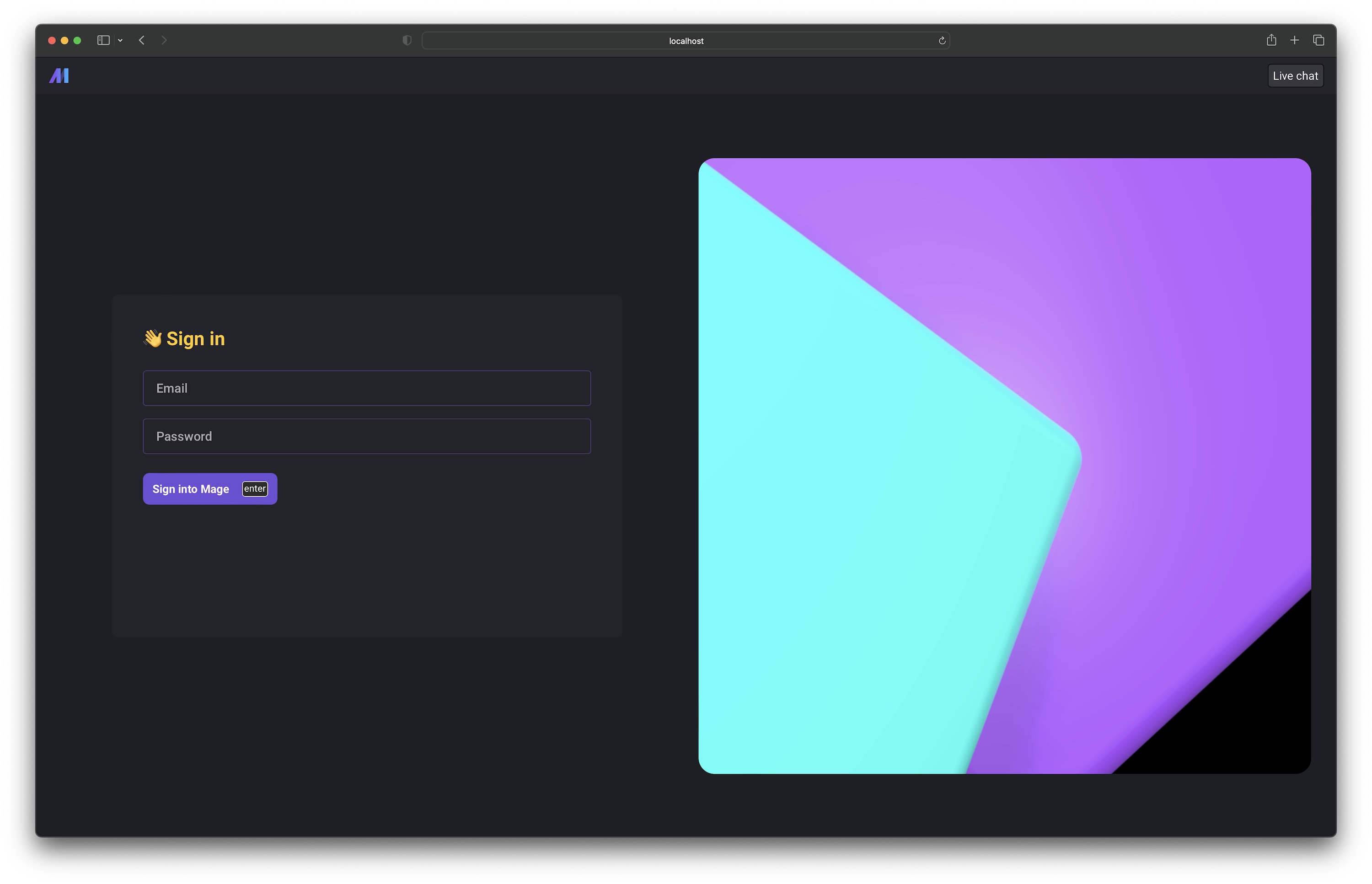
## Sign in page
Before using Mage, users will have to sign in at `/sign-in`. If you go to a page that requires
authentication and you’re not signed in, you’ll be redirected to the sign in page.
***
## Require user authentication
If you’re using Mage version 0.8.4 or greater, than you can optionally turn on user authentication.
Set the following environment variable name and value:
| | |
| ----- | ----------------------------- |
| Name | `REQUIRE_USER_AUTHENTICATION` |
| Value | `1` |
### Set access token expiration time
You can set the `MAGE_ACCESS_TOKEN_EXPIRY_TIME` environment variable to customize the expiration time
of a Mage access token. The value should be the length of time in seconds.
Defaults to 2592000 which is 30 days.
| | |
| ----- | ------------------------------- |
| Name | `MAGE_ACCESS_TOKEN_EXPIRY_TIME` |
| Value | `2592000` |
### Running Mage in Docker
If you’re running Mage using Docker, you can run Mage and set the environment variable
in the `docker run` command. Follow these [instructions](/getting-started/setup#environment-variables)
to learn how.
Set the environment variable using `-e REQUIRE_USER_AUTHENTICATION=1`.
For example:
```bash theme={null}
docker run -it -p 6789:6789 \
-v $(pwd):/home/src \
-e REQUIRE_USER_AUTHENTICATION=1 \
mageai/mageai /app/run_app.sh mage start demo_project
```
### Running Mage without Docker
If you installed Mage using `pip`, `conda`, `poetry`, etc. and are running it using the `mage start`
command, then you need to set the environment variable on your workstation.
#### macOS
Run the following command to set environment variables:
```bash theme={null}
export REQUIRE_USER_AUTHENTICATION=1
```
#### Windows
Read Microsoft’s [instructions](https://learn.microsoft.com/en-us/windows-server/administration/windows-commands/set_1)
on how to do this.
## Default owner user
When Mage starts, if there is no existing owner user, then a new user will be created with owner
permissions (e.g. all permissions).
The owner user can create, edit, and delete other users.
Here are the default credentials for the owner user to sign in with:
| Field | Value |
| -------- | ----------------- |
| Email | `admin@admin.com` |
| Password | `admin` |
## Sign in page
Before using Mage, users will have to sign in at `/sign-in`. If you go to a page that requires
authentication and you’re not signed in, you’ll be redirected to the sign in page.
 ## User management page
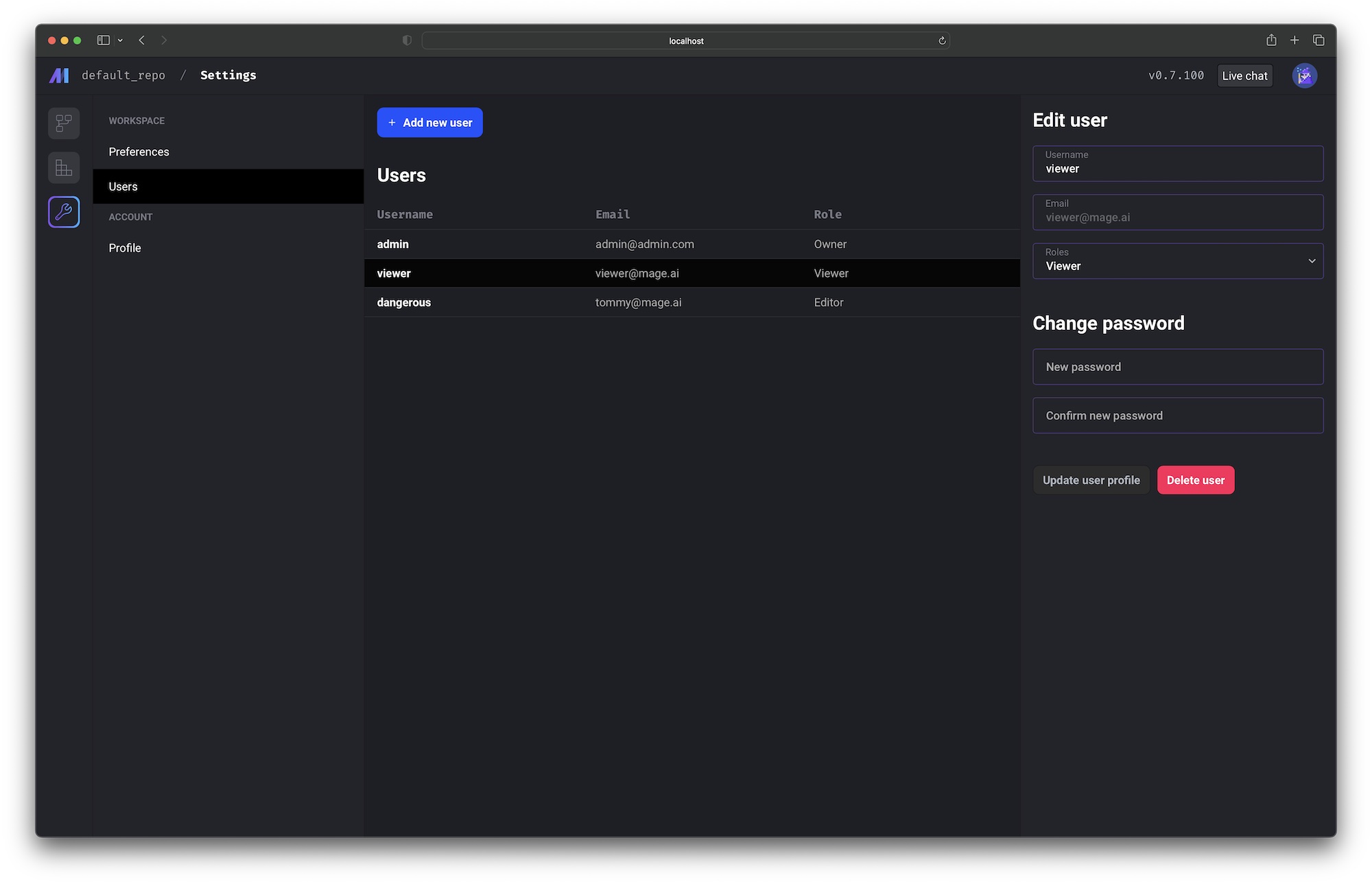
If you’re signed in as the owner user, you’ll have access to the user management page at
`/settings/workspace/users`.
On this page, you can:
1. Add new users
2. Edit existing users
3. Reset user passwords
4. Delete users
## User management page
If you’re signed in as the owner user, you’ll have access to the user management page at
`/settings/workspace/users`.
On this page, you can:
1. Add new users
2. Edit existing users
3. Reset user passwords
4. Delete users
 ## Roles and permissions
| Role | Permissions |
| ------ | --------------------------------------------------------------------------------------------------------------------------------------------------------------------- |
| Viewer | Can read. |
| Editor | Can do everything a viewer can, create, update, and delete. |
| Admin | Can do everything a viewer can, an editor can, and manage users who are viewers/editors (update usernames, emails, passwords, and make viewers editors or vice versa. |
| Owner | In addition to what admins can do, add and delete users. Manage all users, including admins/owners. Make other users any role, including admins/owners. |
## LDAP
If you want to enable LDAP authentication mode, Set the following environment variable name and value:
| Variable name | Value |
| --------------------- | ------ |
| `AUTHENTICATION_MODE` | `ldap` |
In this case, you will also need to configure the following variables:
| Variable name | Description | Example value |
| ---------------------------- | ----------------------------------------------------------------------------------------- | ----------------------------------------------------------------------------- |
| `LDAP_ADMIN_USERNAME` | The username of the owner user created on first run | `admin` |
| `LDAP_SERVER` | The host of the LDAP server | `ldap.example.com` |
| `LDAP_BIND_DN` | The `bind_dn` for the LDAP account that will be used to perform search operations | `cn=admin,dc=example,dc=com` |
| `LDAP_BIND_PASSWORD` | The password for the LDAP account that will be used to perform search operations | `password` |
| `LDAP_BASE_DN` | The base DN of the server | `dc=example,dc=com` |
| `LDAP_AUTHENTICATION_FILTER` | The authentication filter to use in template format using the variable `username` | `(&(\|(objectClass=inetOrgPerson)(objectClass=groupOfNames))(cn={username}))` |
| `LDAP_AUTHORIZATION_FILTER` | The authorization filter to use in template format using the variable `user_dn` | `(&(objectClass=groupOfNames)(cn=group)(member={user_dn}))` |
| `LDAP_GROUP_FIELD` | Name of user attribute to use to determine a user's LDAP group. | `memberOf` |
| `LDAP_ROLES_MAPPING` | Mapping of user LDAP group to Mage roles. Must be in JSON string format. | `'{"Admin": ["Admin"]}'` |
| `LDAP_DEFAULT_ACCESS` | Default access for a new user authenticated through LDAP (default user will have no role) | `Viewer`, `Editor`, `Admin` |
Make sure to adjust the values of the variables to match your LDAP configuration.
When LDAP authentication is enabled, users will need to provide their LDAP credentials to log in to the system. Once authenticated, Mage will use the authorization filter to determine the user's permissions based on their LDAP group membership.
## Authenticated requests
If you require user authentication by turning it on via the environment variable mentioned above,
then each API request the front-end client makes to the backend server will include an API key
and an OAuth2 token.
The API key and OAuth2 token is used to authenticate the incoming request. If the requester
doesn’t have the proper permissions, the backend server will respond with a `4XX` error code.
### API errors
If a page loads and no data is visible, it could either mean there is no data or the user
doesn’t have the proper permissions.
If there is no visible error message on the page, you can view the browser’s network tab and
inspect the API request response to view the full error details
(we’re working on showing better errors and making it easier to display them).
Learn how to view the network requests in Chrome by following these
[instructions](https://developer.chrome.com/docs/devtools/network/).
| Error code | Description |
| ---------- | -------------------- |
| `401` | Expired OAuth token. |
| `401` | Invalid OAuth token. |
| `402` | Record is invalid. |
| `403` | Invalid API key. |
| `403` | Unauthorized access. |
| `404` | Record not found. |
| `500` | API resource error. |
## Roles and permissions
| Role | Permissions |
| ------ | --------------------------------------------------------------------------------------------------------------------------------------------------------------------- |
| Viewer | Can read. |
| Editor | Can do everything a viewer can, create, update, and delete. |
| Admin | Can do everything a viewer can, an editor can, and manage users who are viewers/editors (update usernames, emails, passwords, and make viewers editors or vice versa. |
| Owner | In addition to what admins can do, add and delete users. Manage all users, including admins/owners. Make other users any role, including admins/owners. |
## LDAP
If you want to enable LDAP authentication mode, Set the following environment variable name and value:
| Variable name | Value |
| --------------------- | ------ |
| `AUTHENTICATION_MODE` | `ldap` |
In this case, you will also need to configure the following variables:
| Variable name | Description | Example value |
| ---------------------------- | ----------------------------------------------------------------------------------------- | ----------------------------------------------------------------------------- |
| `LDAP_ADMIN_USERNAME` | The username of the owner user created on first run | `admin` |
| `LDAP_SERVER` | The host of the LDAP server | `ldap.example.com` |
| `LDAP_BIND_DN` | The `bind_dn` for the LDAP account that will be used to perform search operations | `cn=admin,dc=example,dc=com` |
| `LDAP_BIND_PASSWORD` | The password for the LDAP account that will be used to perform search operations | `password` |
| `LDAP_BASE_DN` | The base DN of the server | `dc=example,dc=com` |
| `LDAP_AUTHENTICATION_FILTER` | The authentication filter to use in template format using the variable `username` | `(&(\|(objectClass=inetOrgPerson)(objectClass=groupOfNames))(cn={username}))` |
| `LDAP_AUTHORIZATION_FILTER` | The authorization filter to use in template format using the variable `user_dn` | `(&(objectClass=groupOfNames)(cn=group)(member={user_dn}))` |
| `LDAP_GROUP_FIELD` | Name of user attribute to use to determine a user's LDAP group. | `memberOf` |
| `LDAP_ROLES_MAPPING` | Mapping of user LDAP group to Mage roles. Must be in JSON string format. | `'{"Admin": ["Admin"]}'` |
| `LDAP_DEFAULT_ACCESS` | Default access for a new user authenticated through LDAP (default user will have no role) | `Viewer`, `Editor`, `Admin` |
Make sure to adjust the values of the variables to match your LDAP configuration.
When LDAP authentication is enabled, users will need to provide their LDAP credentials to log in to the system. Once authenticated, Mage will use the authorization filter to determine the user's permissions based on their LDAP group membership.
## Authenticated requests
If you require user authentication by turning it on via the environment variable mentioned above,
then each API request the front-end client makes to the backend server will include an API key
and an OAuth2 token.
The API key and OAuth2 token is used to authenticate the incoming request. If the requester
doesn’t have the proper permissions, the backend server will respond with a `4XX` error code.
### API errors
If a page loads and no data is visible, it could either mean there is no data or the user
doesn’t have the proper permissions.
If there is no visible error message on the page, you can view the browser’s network tab and
inspect the API request response to view the full error details
(we’re working on showing better errors and making it easier to display them).
Learn how to view the network requests in Chrome by following these
[instructions](https://developer.chrome.com/docs/devtools/network/).
| Error code | Description |
| ---------- | -------------------- |
| `401` | Expired OAuth token. |
| `401` | Invalid OAuth token. |
| `402` | Record is invalid. |
| `403` | Invalid API key. |
| `403` | Unauthorized access. |
| `404` | Record not found. |
| `500` | API resource error. |